 EN
EN
 Dansk
Dansk  Deutsch
  Español
  Français
  Hrvatski
  Indonesia
  Italiano
  Magyar
  Nederlands
  Norsk
Norsk  Polski
  Português
  Română
  Suomi
Suomi  Svenska
  Tiếng Việt
  Türkçe
  Čeština
  Ελληνικά
  Русский
  Українська
  български
  ไทย
ไทย  日本語
日本語  简体中文
简体中文  한국어
한국어  עברית
עברית  العربية
 VPN Not Connecting? 11 Possible Causes (With Fixes)

Though premium VPNs work reliably, it's still common to run into connection issues. Your VPN not connecting can be a result of several hitches. For example, the app itself might be faulty, your internet connection is slow, or the device settings are corrupted.
Many of these problems aren’t complicated, and it’s possible to fix them by following my step-by-step guide. However, it's essential to have standby customer support if the solutions fail to work and the VPN still won’t connect on your Windows, Mac, or iPhone. My team and I found effective ways to fix connectivity issues and tested over 50 VPNs to find the most reliable ones.
A VPN Won’t Connect — 11 Possible Causes and Fixes
Unfortunately, VPNs usually don’t let the users know what’s causing the problem. They might display error messages like Can't connect or some error codes. Sometimes, you may have to try more than one solution presented below to solve your connection issues. However, it takes just a few minutes with each of my quick fixes.
It’s also recommended to get a VPN with professional 24/7 customer support (like ExpressVPN) to help you out if you really get stuck. But first, let’s look into the possible reasons why your VPN is not connecting automatically since it might be super easy to fix it.
1. Unstable or No Internet Connection
Blocked or slow internet is one of the most apparent causes of VPN connection failure. This should be the first thing to check if your VPN is not connecting or keeps disconnecting. Verify whether the other devices on the same WiFi network (preferably those not connected to the VPN) can access the internet.
Possible Fix
If the internet is working everywhere except on your device, try disconnecting and reconnecting it to the WiFi. In case that doesn’t work, restart the app and your device. It's also possible that the WiFi password has changed, so you should check that. You can inspect the ethernet cable too — a loose connection can’t correctly transmit bandwidth.
In the event that all devices can’t access the internet, switch off and restart your router. Contact your internet service provider (ISP) if the problem persists.
Above all, your VPN should come with a kill switch that is always on. This way, your private details (like your actual IP address) can't be exposed online when a VPN connection accidentally drops.
2. A Firewall Is Blocking the VPN App
For security reasons, built-in firewall systems (like antivirus and anti-spyware) on Windows or Mac devices may block certain apps and require permissions to be enabled manually.
Possible fix
Check the blocked apps list and make exceptions for your VPN if it isn't allowed. Here's how you can do it.
On Windows
- Search for Windows Defender Firewall in the home search bar (or find it manually from Control Panel > System & Security > Windows Defender Firewall).
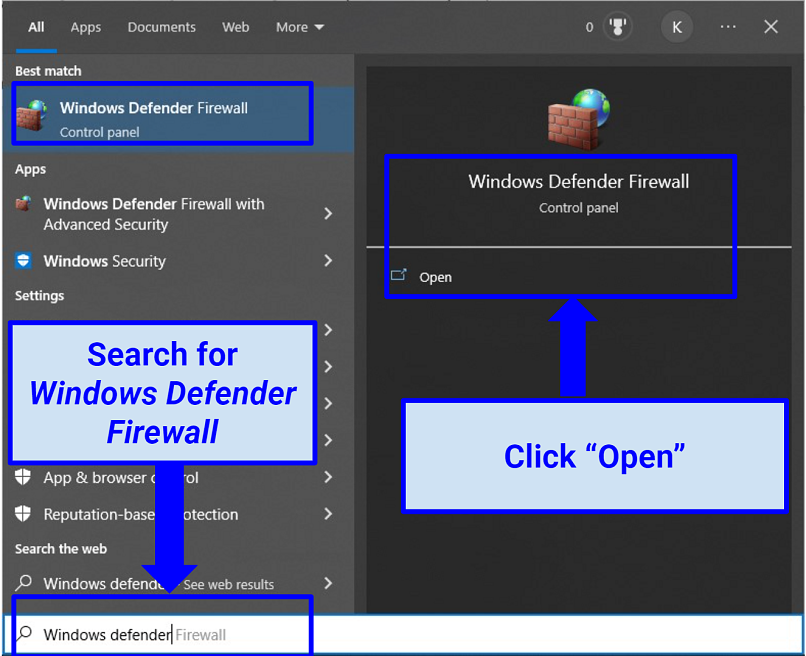 It’s easy locating the Windows Defender Firewall
 - On the appearing screen (Allow apps to communicate through Windows Defender Firewall), click Allow another app.
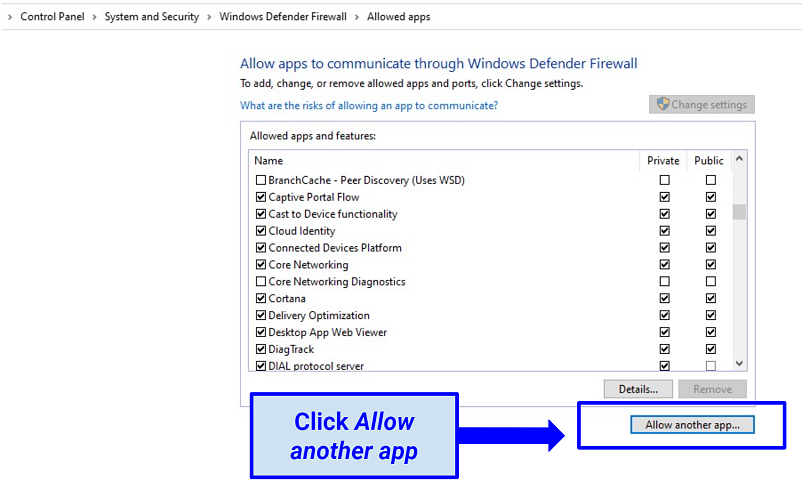 A VPN works when allowed on Windows Firewall
 - Select your VPN (or enter path) from the provided app list and click Add.
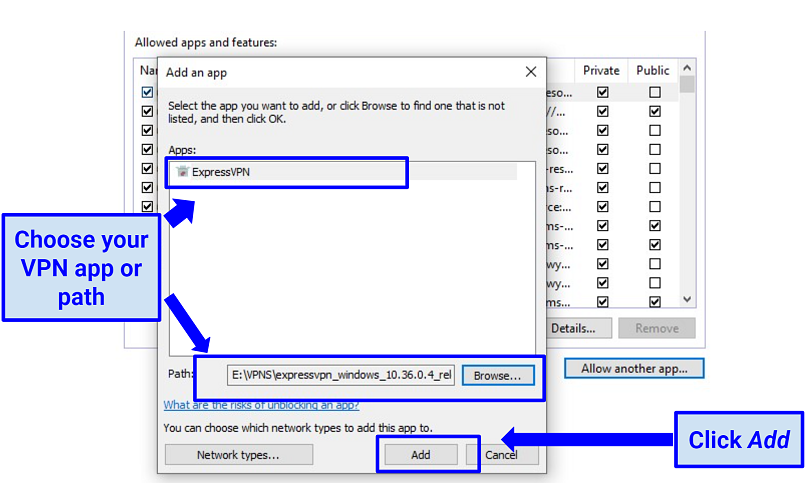 You can add the VPN to the list of allowed apps on Windows Firewall manually
 - Close the prompt and connect the VPN.
On macOS
- Go to System Preferences.
- Choose Security & Privacy.
- Click Firewall, then Firewall Options.
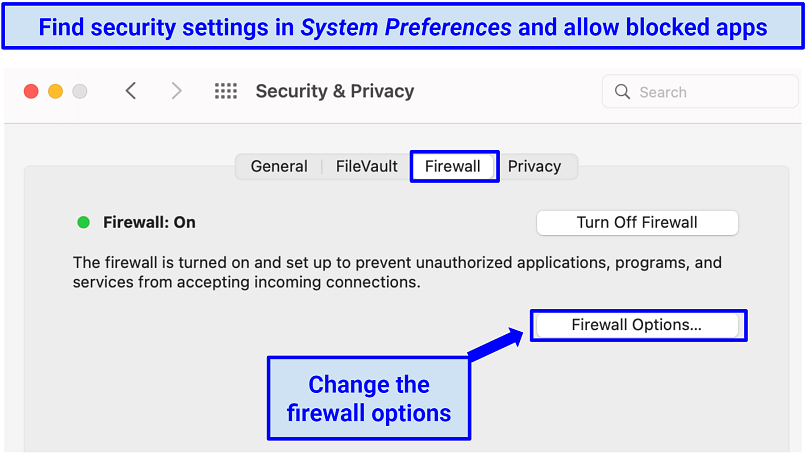 macOS firewall can prevent VPNs from connecting
 - Press the + sign, then add your VPN app.
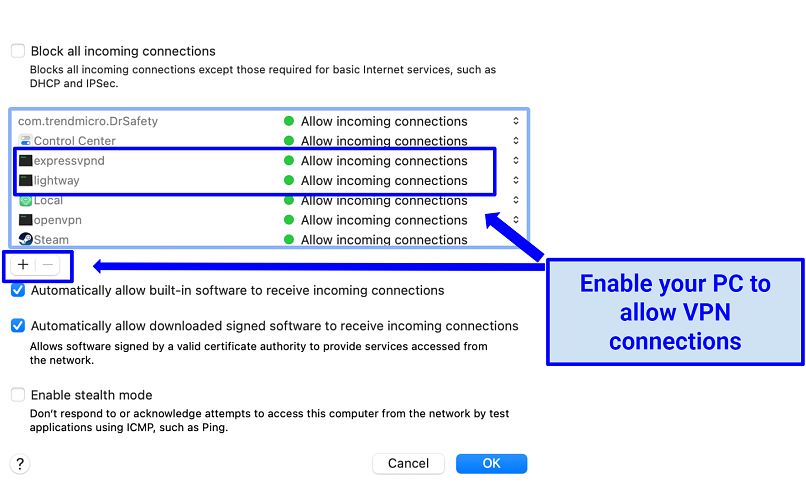 Changing macOS firewall settings takes just a few clicks
 - Connect to your VPN.
3. The Server You’re Connecting to Isn’t Currently Working
Your VPN app might be working just fine, but the issue is with the servers. If they're under maintenance, you will likely encounter connection failure. Confirm with your provider’s official site or social media pages if some servers are down. The server you’ve selected can also be experiencing an overload, with many users trying to access it.
Possible Fix
Disconnect from the server and try connecting again — you might be automatically redirected to another working server in the same location. You can also choose another server and see if that solves the issue. This is why it’s best to have a VPN with multiple servers in many locations to quickly switch up if one doesn’t work. Choose a nearby server for faster speeds or a specific location to access the content you need.
4. Another Installed VPN is Blocking Your Connection
Some VPNs won’t work unless other installed VPNs are removed. While trying to connect, you may receive a prompt to uninstall the background VPN apps, though sometimes you won’t get any notifications.
Possible fix
Uninstall or disable all the VPNs except the one you currently want to use. You can also install a virtual machine program and run the extra VPN apps on separate partitions of your PC.
5. Your VPN Needs Updating
Using an older app version can be the reason your VPN won’t connect. A VPN needs regular updating like every other software to avoid performance issues. This helps to fix bugs and corrupted files that prevent connection.
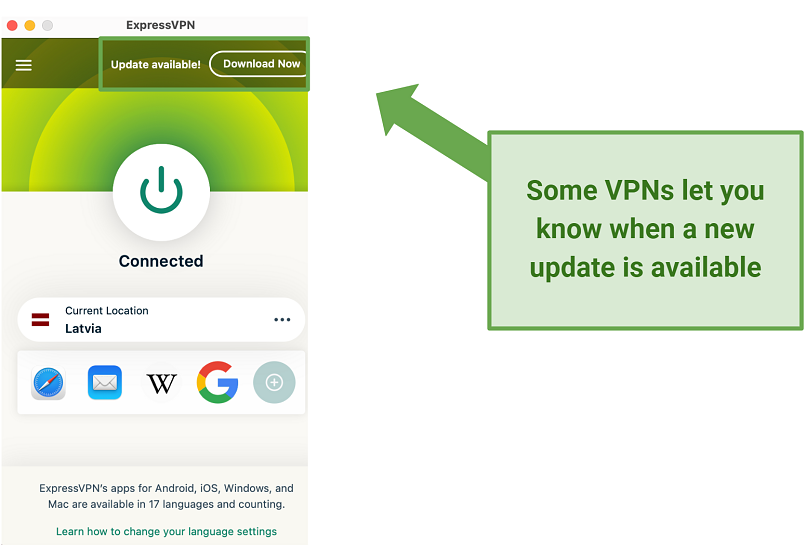 ExpressVPN suggests you to download and install an update
Possible fix
Install the latest VPN app from the official site and try connecting again. It’s also a good idea to update your browser extension and reconnect a VPN.
6. The VPN Protocol Has Changed
Sometimes, updating your VPN software can change it to the default protocol, which may not be supported on a device you currently use. Check (in the settings) and see if the selected protocol works with your device.
Possible Fix
Try changing to the OpenVPN protocol (TCP or UDP) first. This is the standard protocol for most devices. If the VPN is still not connecting, test the others, like WireGuard, IKEv2, or SSTP. IKEv2 works great on mobile devices (Android, iPhone, and iPad) — you can easily switch servers without connection issues. Some VPNs have a Restore Defaults button — if not, change the tunneling protocol to Automatic or select TCP/UDP if this option isn’t available.
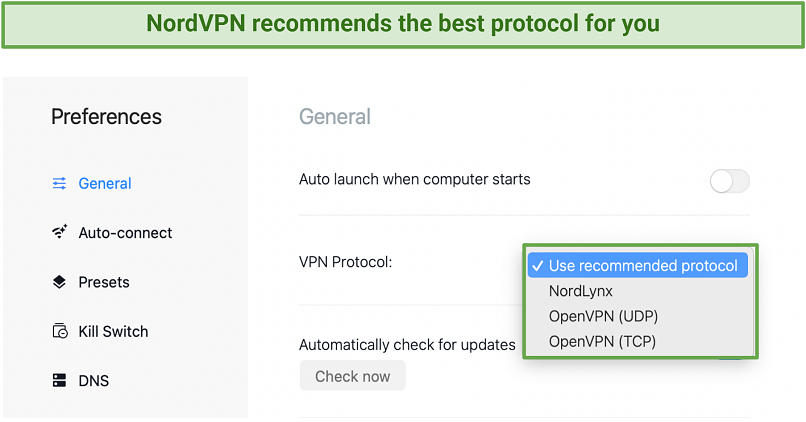 You can change your connection protocol to UDP or TCP and see if it works
Sometimes the problem might be caused by a kill switch, a custom DNS feature, or obfuscation tech. Try turning them off and activating again to see if they cause the connection issue.
7. The Port Numbers Used by the VPN Are Blocked
It’s possible that your internet device/provider/network administrator doesn't allow traffic from certain port numbers used by the VPN app. The standard VPN protocol port numbers are SSTP (Port 443 TCP), OpenVPN (UDP 1194 and 443 TCP), and IPsec (500 UDP and 4500 UDP). VPN port forwarding can add different port numbers that aren't recognized by your network firewall.
Possible fix
Go to your router device settings and manually allow the port numbers used by your VPN. The procedure requires some technical knowledge, so if you aren't tech-savvy, it’s better to ask a professional. Also, do it only when you're sure about the cause. Reinstall the VPN if the problem persists.
8. Account Information Has Changed
Someone may have changed the VPN credentials, so you can't connect to the servers. In rare cases, your account information can automatically reset. This happens due to infrastructure upgrades or when using free services. Suspicious activity can also cause your account to be suspended or frozen. Other times, your VPN won’t connect because the offer hasn’t been renewed.
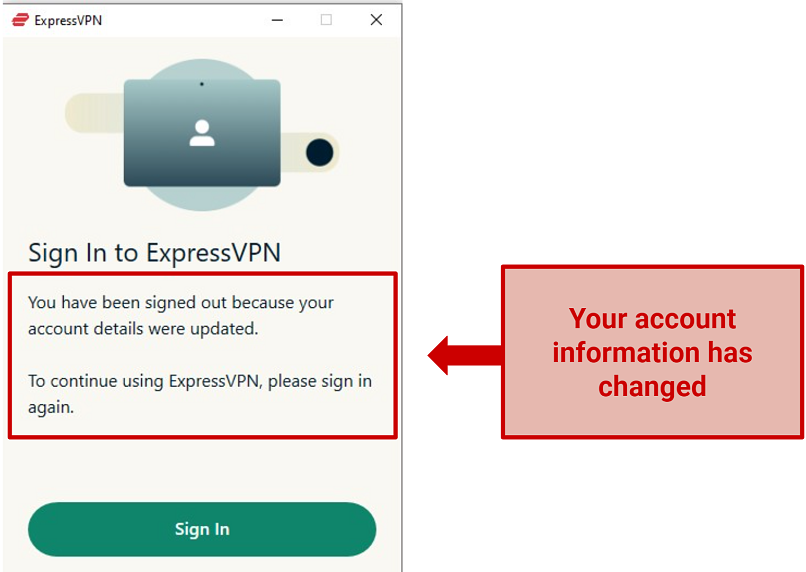 A VPN won’t connect because of invalid account information
Possible fix
Go to your provider’s website and try logging in to your account. If you can’t access it, change your password or contact support. If your usual login is working normally, check if your offer is still valid. Remember to use complex passwords and change them regularly for better safety.
9. A Bug Is Causing VPN Malfunction
A VPN can experience connection errors if the code is outdated. It may sometimes fail to work after updating your device's operating system. This is because the new OS version isn't compatible with the VPN.
Possible fix
Update the app if you haven’t done so in a while. If the problem starts immediately after updating your computer or smartphone’s OS, try downgrading it. Besides, you can check the software community forum for other possible solutions.
Some software issues might be solved by closing some background programs or cleaning up the space on your disk. Also, check for security/parental controls on your router and disable them if necessary.
10. You’re Connecting to a Virtual Server
You might be connecting to a different location from your chosen one. Usually, this happens because you're connecting to a virtual server instead of a physical one. VPN providers offer these types of servers to reduce expenses or avoid strict operation laws in certain countries. While virtual servers are configured to mask your location well, lookup services can sometimes detect the location of the physical server infrastructure.
Possible fix
Confirm with the server list on the official website whether you’re using a virtual one. Usually, the providers indicate which servers are virtual and which are physical. Change to another, if possible, and see if it solves the problem.
11. VPNs Aren’t Allowed in Your Current Location
VPNs are banned or restricted in certain locations. Heavily-censored countries like China, Belarus, and Russia deploy firewalls to block encrypted connections. Besides, public WiFi in cafes, schools, offices, and airports may not allow VPN traffic.
Possible fix
Enable the obfuscation feature in the settings section of your VPN (if offered by your provider). Obfuscation tech makes your encrypted connection appear as regular traffic, so firewalls and ISPs can’t detect it. You might also try clearing your browser’s cache and cookies to ensure the service forgets your actual location or using incognito mode.
If you travel to countries like China, Iran, or the UAE, it’s recommended to install a VPN before arriving there and make a note of manual installation instructions. They block VPN traffic with advanced technologies, such as DNS tampering, IP blocking, and deep packet inspection (DPI). Searching for mirror sites that might still be accessible in China beforehand is also a good idea.
FAQs
Why is my VPN not connecting on an iPhone and iPad?
Most likely, your device's settings aren't properly configured. Confirm first that your internet is working. If you’re using a mobile phone, disable battery saving/low power mode and reset your WiFi network. Next, check whether your iPhone or iPad firewall isn’t blocking the VPN.
Also, see whether your network settings allow VPN traffic. You can do this by going to Settings, then WiFi, and clicking the ! sign next to your connected network. On the prompt, turn off Private WiFi Address and try connecting the VPN.
What should I do if my VPN is not working on school WiFi?
Try using a different protocol or port. Some protocols are easily detected and blocked by firewalls or DPI on public WiFi. That's why the service you use should have an obfuscation feature to prevent your VPN traffic from being seen. Another reason why your VPN may not be connecting is that the network doesn’t support the port you’re using. Go to your settings and switch to another port.
If online games are blocked when you use a VPN, try changing the servers. Make sure the game is supported in your chosen location.
Why did my VPN stop working after a Windows update?
New Windows updates and patches sometimes break VPN connections. Such bugs mainly affect Windows 10 and 11 updates. Using the latest software version can fix VPN performance issues since Microsoft has released more patches to solve connectivity issues. Downgrading should be the last option, though you'll miss important security updates.
Can a VPN be blocked?
Yes, networks and websites can easily detect and block encrypted traffic. Internet hotspots are heavily monitored in school environments or restrictive countries. However, an obfuscated VPN helps you access online services safely from anywhere. It camouflages your connection as regular internet traffic, so firewalls can’t detect it.
Deep packet inspection can identify and block VPN traffic. Some IP addresses might also be blocklisted by ISPs, network administrators, and streaming platforms.
Why can’t I send emails while using my VPN?
If your VPN isn’t working with email, there are two possible solutions. Your email provider might block some known VPN servers. That’s why it’s recommended to choose a VPN with a vast server network and try connecting to another one.
Sometimes your VPN can block an email service’s port. For example, ExpressVPN blocks TCP port 25 to protect you from spam and malware. You might try switching to more secure and common ports, such as 587 or 465.
Fix Your VPN Connection Now
Some VPN connection problems aren't technical and can be quickly solved. It's much easier to handle them, especially if your app isn't complicated and offers multiple alternative features. This enables you to tweak a few settings and fix the issue without any help.
About the Author
Kennedy is a former writer at vpnMentor. He tested VPN software to give legit user experiences that help people make informed choices. Kennedy also put together detailed setup and troubleshooting guides for mobile, PC, and router devices.