 EN
EN
 Dansk
Dansk  Deutsch
  Español
  Français
  Hrvatski
  Indonesia
  Italiano
  Magyar
  Nederlands
  Norsk
Norsk  Polski
  Português
  Română
  Suomi
Suomi  Svenska
  Tiếng Việt
  Türkçe
  Čeština
  Ελληνικά
  Русский
  Українська
  български
  ไทย
ไทย  日本語
日本語  简体中文
简体中文  한국어
한국어  עברית
עברית  العربية
3 Best VPNs for Apple TV in 2025: 4K Streams & Native Apps

- Why a VPN Matters on Apple TV
- Compare the Top Apple TV VPN Features
- Best VPNs for Apple TV — In-Depth Reviews in 2025
- How We Narrowed Down the Best Apple TV VPNs
- How to Install a VPN on Apple TV (tvOS 17+)
- How to Set Up a VPN on Older Apple TV Models
- How to Switch VPN Protocols on Apple TV
- Troubleshooting Streaming on Apple TV
- Can You Use One VPN Subscription on All Your Apple Devices?
- FAQs
- Summary
Finding a VPN that works smoothly on Apple TV feels trickier than it should be. Some apps look great, but fall apart once you try streaming in 4K. We’ve tested dozens of VPNs on an Apple TV running tvOS 17, and the biggest surprises were speed, stability, and how different the tvOS apps feel compared to their mobile versions.
The good news is that a few VPNs deliver excellent Apple TV performance. They install through the App Store, work with major streaming platforms, and stay fast enough for uninterrupted 4K viewing. Below, I’ll walk you through the best VPNs for Apple TV, explain what makes each one stand out, and help you choose the right option for you.
Why a VPN Matters on Apple TV
A VPN can solve a few issues that come up often on Apple TV. For example, it can make streaming more stable. Some internet service providers (ISPs) slow streaming connections during busy hours. We noticed this while running tests in the evenings, at peak streaming time. With the right VPN, this slowdown almost disappeared as the ISP couldn’t tell we were streaming — apps loaded faster and streamed without lag.
In addition, VPNs help keep your information private, so you’ll be less targeted by streaming platforms’ data-gathering tactics. They also keep your connection safe. If you ever click on a link or visit a review website for the shows/movies you want to watch, and it seems sketchy, the VPN will shield you from malware (if it has the proper features).
Compare the Top Apple TV VPN Features
The table below shows how the top three services performed on Apple TV in 2025, based on hands-on testing and repeated 4K playback checks.
Best VPNs for Apple TV — In-Depth Reviews in 2025
1. Proton VPN — Fastest 4K Streaming on Apple TV

 Try Risk-Free for 30 Days
Tested December 2025
| Best Feature | Fastest long-distance connections for stable 4K playback |
|---|---|
| Speed Tests | 84Mbps on long-distance servers |
| Works With | Netflix, Amazon Prime Video, Hulu, Disney+, Max |
| Apple TV Advantage | Very simple one-click tvOS app with QR login |
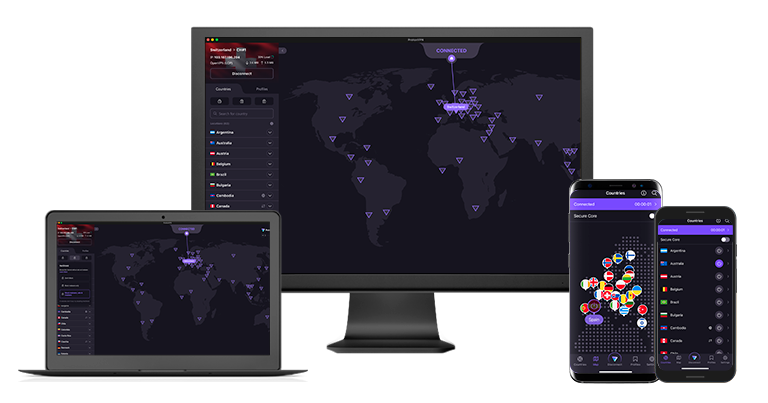
Proton VPN stood out immediately on Apple TV because of its speeds. During testing, it delivered 84Mbps to a New York server, which was faster than our connection without the VPN active. We didn’t see any buffering, even when skipping around shows in 4K quality. It was the only VPN we tested that stayed consistently fast throughout the day.
The Apple TV app is pretty sparse — you open it, click the connect button, and you’re online in a few seconds. There are no settings to adjust, and you can only choose a country, not a city-level server. While this could feel limiting for advanced users, we didn’t mind it; all we needed was a stable connection for streaming.
Proton VPN also worked with every streaming platform we tested. Content loaded quickly, and we didn’t get any playback errors. If your Apple TV is an older model without VPN support, Proton VPN’s Smart DNS feature is easy to set up. All plans have a 30-day money-back guarantee, making it easy to test the service risk-free.
Useful Features
- Native Apple TV app with QR login. You can install Proton VPN directly from the Apple TV App Store. Signing in with a QR code took less than 30 seconds, and the app connected to a server nearly instantly each time.
- Smart DNS for older Apple TV models. If your device doesn’t support a VPN app, Proton VPN includes Smart DNS. It works with different streaming regions by configuring Apple TV DNS settings, without needing extra hardware.
- Strong privacy standards. Proton VPN’s audited zero-logs policy and secure infrastructure are useful if you stream on shared home networks or use public WiFi.
- Advanced security features
- Good value
- Not all apps are equal
- No split tunneling for Mac
2. NordVPN — Best for Advanced Control, With Reliable Speeds

| Best Feature | City-level server selection and Post-Quantum Protection toggle |
|---|---|
| Speed Tests | 77.6Mbps, stable during the day |
| Works With | Netflix, Amazon Prime Video, Hulu, Disney+, Max |
| Apple TV Advantage | Easy region switching with the dropdown city list |
NordVPN provides the most granular control inside its tvOS app. We liked being able to swipe down to pick a specific city, which made switching servers for certain content much easier. Connections were a little slower than Proton VPN, sometimes taking close to a minute to complete the handshake. Once connected, it was reliable and pretty fast.
The app includes a Post-Quantum Protection toggle, which is a nice extra if you’re privacy-focused. None of the specialty servers are available on the Apple TV app, but NordVPN’s servers worked well for streaming on all major platforms. Netflix and Prime Video loaded quickly, and we didn’t hit any blocks or streaming error messages.
If you use an older Apple TV model, NordVPN supports Smart DNS and has full setup guides on its support site. You’ll also find it has a 30-day money-back guarantee if you want to try before you buy.
Useful Features
- Quick Connect for automatic location optimization. If you’re not sure which server to pick, NordVPN’s Quick Connect chooses the best available server based on distance and network load.
- Clear connection status and server info. The Apple TV interface shows the current server and IP in a clear overlay, making it easy to confirm the connection was active before opening the streaming apps.
- Protect up to 10 devices. Secure your Apple TV, phone, computer, and any other devices all on a single account.
- Strong security and privacy
- Fast local and faraway servers
- Great for streaming
- Some long connection times
- High renewal prices
3. ExpressVPN — Easiest Apple TV App and Built-In Tracker Blocking

| Best Feature | Intuitive Apple TV interface with quick-access Favorites |
|---|---|
| Speed Tests | 53.2Mbps on distant servers; inconsistent results |
| Works With | Netflix, Amazon Prime Video, Hulu, Disney+, Max |
| Apple TV Advantage | Advanced Protection blocks ads and trackers on tvOS |
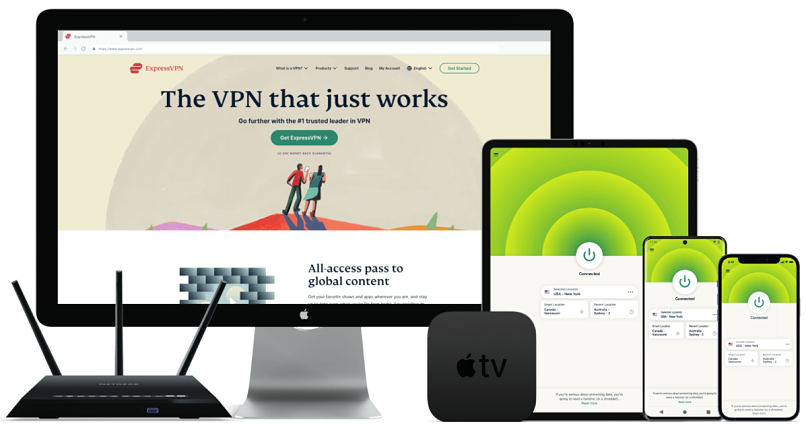
ExpressVPN was the easiest Apple TV app to navigate. We liked how quickly it connected and how simple it was to switch servers. Long pressing on the remote brings up the server menu, and the Favorites list makes it faster to return to the servers you use most. We also like having ad and tracker blocking available in-app, keeping the Apple TV interface cleaner.
Speed-wise, we were a little disappointed. ExpressVPN is typically consistently fast, but despite connecting instantly, its performance dropped more than other VPNs we tried at this time. It still worked on every streaming platform we tested, but connection stability depended on the time of day.
ExpressVPN also has MediaStreamer Smart DNS, but it’s only designed to improve your streaming connection, not to change your location. All ExpressVPN plans are backed by a 30-day money-back guarantee.
Useful Features
- Automatic server recommendations. ExpressVPN suggests the best server connection based on current conditions, like your location and network stability.
- In-app privacy alerts. The Apple TV app shows clear notifications when features like Advanced Protection are active, so you can confirm everything is running before you start streaming.
- One-click Recent Locations. The app keeps a short list of the last regions you connected to, making it easy to bounce between countries without opening the full server list.
- One of the fastest VPNs
- Works with top streaming sites
- A proven no-logs policy
- Limited customization
- Smart Location isn't always the fastest
How We Narrowed Down the Best Apple TV VPNs
We tested each VPN on an Apple TV running tvOS 17 using the native app. The goal was to see how each service performed during real streaming, not just what its marketing claims.
We checked long-distance and local servers, repeating speed tests at different times of the day. For streaming, we opened platforms like Netflix, Hulu, and Disney+, playing 4K content to check for buffering or quality drops. We also switched regions to see how quickly the apps responded.
To cover older devices, we tested each provider’s Smart DNS on an earlier Apple TV model. Everything in this review is based on how the VPNs behaved directly on Apple TV. You can take a look at our in-depth testing methodology for more details.
How to Install a VPN on Apple TV (tvOS 17+)
- Download a VPN with a native Apple TV app.
Open the App Store on your Apple TV and find your chosen VPN. Proton VPN is my top choice for its fast, reliable connection speeds. - Log in to your account.
Either create a new VPN account or log in with your existing account details. - Connect to a server.
Choose a nearby server for the best speed results. That way, you’ll avoid buffering. - Open a streaming app.
Click on the streaming platform you want to watch content from and pick a title. - Start streaming on your Apple TV.
Your connection is now protected, and you’re all set.
How to Set Up a VPN on Older Apple TV Models
Older Apple TVs cannot support VPN apps directly, so you need an alternative method. The easiest options are using Smart DNS or installing a VPN on your router.
Option One: Smart DNS (Fast & Easy)
Time required: 3–5 minutes
Difficulty: Easy
- Log in to your VPN account on your phone or laptop.
- Register your home IP address. Your VPN needs this so it can link your Apple TV to the Smart DNS profile.
- Open Settings on your Apple TV.
- Switch DNS to Manual and enter the VPN Smart DNS address.
- Restart your Apple TV.
Smart DNS is optimized for streaming in multiple locations, but it doesn’t encrypt your traffic, so only use it for non-sensitive online activities.
Option Two: Install the VPN on Your Router
Time required: 15–25 minutes
Difficulty: Moderate
- Check if your router supports VPN connections. Most modern ASUS, TP-Link, and Netgear models do, but some ISP routers don’t.
- Log in to your router dashboard.
- Upload your VPN configuration file. You’ll find this in your VPN account.
- Enter your VPN account details. Your router will likely need your username and password from the provider.
- Save and apply the changes. Now your entire home network, including your Apple TV, is using the VPN connection.
This method is fully encrypted and also lets you switch connection protocols, which can help if tvOS doesn’t give you the option to switch.
How to Switch VPN Protocols on Apple TV
Apple TV apps don’t offer protocol controls. We checked this for all three of the top VPNs, and each one only has a connect button — no protocol menu. If you need to switch from one protocol to another, the only reliable method is to install the VPN on your router and change the protocol there.
You might want to switch protocols if your speeds are slow or you’re having connection issues. If you run into problems with NordLynx on Apple TV or want to try OpenVPN or WireGuard, the router method is the only way to make that change.
Troubleshooting Streaming on Apple TV
Most streaming issues on Apple TV are easy to fix once you know what’s causing the problem. These are the issues we ran into during testing, along with the simplest solutions:
- Video keeps buffering: Try switching to a closer server, restarting the VPN app, or briefly changing regions. These can all help clear slow connections and refresh the route your traffic takes.
- Streaming app shows a location error: Reconnect to a new server, restart the streaming app, or check your Smart DNS settings if you’re on an older Apple TV. Servers sometimes get flagged by streaming platforms, so a simple restart or switch is often enough to fix the problem.
- The VPN app won’t connect: Restart your Apple TV, check your WiFi connection, or check your VPN login details. A simple reboot can fix most connection issues, but if your WiFi is slow or you’ve changed your login details, that can prevent the VPN from connecting.
- The region doesn’t change after connecting: Make sure the VPN connection is fully established, or try a different city. Opening your streaming platform while the VPN is still connecting can cause conflict issues.
Can You Use One VPN Subscription on All Your Apple Devices?
Yes. All three VPNs we’ve recommended allow multiple devices on a single account, which is helpful if you switch between platforms when streaming. We often kept the VPN running on a phone or laptop while the Apple TV stayed connected, and none of the above VPNs had issues with this.
Proton VPN and NordVPN allow up to 10 devices, which is enough for most homes. ExpressVPN’s connections vary depending on your plan, starting at 10 and going up to 14. If you install the VPN on your router, the entire network only counts as one connection. It’s useful if you have many Apple devices and they can all share the same region.
For most households, a single subscription is more than enough to cover all Apple TVs and personal devices.
FAQs
Summary
The right VPN can make streaming on Apple TV smoother, faster, and more flexible. When you’ve installed your chosen VPN, you can stream in ultra-high quality and protect your connection at the same time.
After testing these services on an Apple TV, Proton VPN delivered the most consistent 4K performance. It connected quickly, handled streaming without buffering, and worked on every streaming platform we tested. You can install it through the Apple App Store and start streaming in minutes.
Your online activity may be visible to the sites you visit
Your IP Address:
216.73.216.104
Your Location:
US, Ohio, Columbus
Your Internet Provider:
Some sites might use these details for advertising, analytics, or tracking your online preferences.
To protect your data from the websites you visit, one of the most effective steps is to hide your IP address, which can reveal your location, identity, and browsing habits. Using a virtual private network (VPN) masks your real IP by routing your internet traffic through a secure server, making it appear as though you're browsing from a different location. A VPN also encrypts your connection, keeping your data safe from surveillance and unauthorized access.
About the Author
Doris was a tech writer and a cybersecurity researcher for vpnMentor. She is enthusiastic about educating people about their rights to online freedom and provides actionable ways to protect their data.


Please, comment on how to improve this article. Your feedback matters!