 EN
EN
 Dansk
Dansk  Deutsch
  Español
  Français
  Hrvatski
  Indonesia
  Italiano
  Magyar
  Nederlands
  Norsk
Norsk  Polski
  Português
  Română
  Suomi
Suomi  Svenska
  Tiếng Việt
  Türkçe
  Čeština
  Ελληνικά
  Русский
  Українська
  български
  ไทย
ไทย  日本語
日本語  简体中文
简体中文  한국어
한국어  עברית
עברית  العربية
 How To Fix Gaming Lag in 2026 — Tested Methods

The best way to fix gaming lag is to identify whether it’s caused by your network, device, router, ISP route, or the game server, then apply the solution that matches the problem.
Nothing kills a clutch moment faster than lag — that dreaded screen freeze as you're about to pull off the perfect headshot. Whether you're grinding ranked matches in Valorant, raiding in World of Warcraft, or building in Fortnite, lag kills momentum and team morale. I've had a ranked match slip away because of it, so I know how you feel.
Latency can make or break your gaming experience, especially in competitive or fast-paced online games. PubNub’s 2025 latency breakdown notes that sub-40ms is competitive, while anything above 60ms can put you at a real disadvantage.1 Gaming lag isn't always about your internet speed; even a strong full-fibre connection can feel sluggish if WiFi congestion, traffic shaping, background apps, or system performance issues get in the way.
Unfortunately, the many possible causes behind lag make it hard to identify and fix, but this guide helps cut through the guesswork and shows proven ways to reduce gaming lag and lower ping. From quick home tweaks to using a VPN to bypass ISP throttling and more advanced solutions, we’ll cover practical steps, battle-tested by real gamers (including me), to get your gameplay running smoothly again.
Short on Time? Match Your Gaming Lag Problem to the Right Method
Gaming lag is easier to solve when you start with the symptom instead of trying random settings. Use the table below to find the most likely cause based on common signs like high ping, rubber-banding, packet loss, stuttering, or NAT issues.
| Solution | Problem It Solves | Pros | Cons |
| Choose the Closest Game Server/Region | High baseline ping even with a stable connection. | ✅ Fast and easy to do ✅ Straight ping reduction ✅ Free |
❌ Not always available as some games auto-select ❌ May split parties/friends across regions |
| Use a Wired (Ethernet) Connection | Random spikes, rubber-banding, and packet loss on busy home networks. | ✅ Lowest latency (~1–4ms) ✅ Less outside interference ✅ Straightforward plug-and-play |
❌ Requires a physical cable run ❌ May be impractical, such as for shared spaces |
| Optimize WiFi | Ping spikes every few seconds, especially in shared apartments, dorms, or crowded WiFi networks. | ✅ Big stability gains without wiring ✅ Works with most routers |
❌ Still subject to interference ❌ Varying difficulty and cost |
| Close Background Apps That Use Bandwidth | Random spikes, high latency in evenings. | ✅ Instantly frees up network resources ✅ No cost |
❌ Tedious to perform ❌ May disrupt your other activities (storage sync, etc.) |
| Reduce Bufferbloat With QoS/SQM | Lag when someone starts streaming/uploading; voice chat breaking up. | ✅ Major jitter/latency improvement under load ✅ Works automatically once set |
❌ Requires a router with QoS/SQM support ❌ Advanced settings can be confusing |
| Use a VPN for ISP Throttling or Bad Routing | Good line quality but high ping to a specific title; suspected ISP throttling or poor routing. | ✅ Effectively bypass congested ISP routes or traffic shaping ✅ Also secures online activity ✅ Easy to install and use |
❌ Possible latency overhead ❌ Requires a paid VPN for best results |
| Update Game, OS Drivers, and Router Firmware | New issues after patches; flaky NIC behavior. | ✅ Easy and free ✅ Also fixes performance issues and bugs ✅ Can automate and schedule updates |
❌ Time-consuming to check and run updates for all apps ❌ Occasional regressions, so roll back if things get worse |
| Tune In-Game Network and Performance Settings | Jitter/loss on specific titles (e.g., “network smoothing,” “packet burst” indicators). | ✅ Quick frames per second (FPS) and latency gains ✅ Some games offer built-in network optimizations |
❌ Slight input-lag increase when buffering is raised ❌ Trial-and-error adjustments |
| Restart the Router and Gaming Device | Experiencing random lag spikes or high ping. | ✅ Free and simple ✅ Often instantly effective |
❌ May require repeating |
| Use a Lag Reduction App | High ping caused by inefficient routes to game servers. | ✅ Can deliver major improvements ✅ Usually no manual configuration or trial and error |
❌ Adds slight connection overhead ❌ May require a paid subscription |
| Enable UPnP or Manual Port Forwarding | Strict/Type 3 NAT, lobby disconnects, voice chat issues. | ✅ Reduces matchmaking errors and disconnects | ❌ Risky if misconfigured ❌ Requires router support ❌ Manual forwarding is fiddly |
| Lower CPU/GPU Spikes | Stutter that looks like rubber-banding but isn’t (frametime spikes). | ✅ Smooths gameplay | ❌ May require cooling upgrades, reduced graphics settings, or hardware changes |
| Escalate to Your ISP or Switch Providers | Consistent bad hop in traceroute or evening-only congestion. | ✅ Can help resolve persistent routing or peak-hour congestion outside your home network | ❌ Not always available depending on your location or contract ❌ May take time and cost more |
What Causes Gaming Lag? The Main Sources to Check
Gaming lag usually happens when hardware performance, software issues, or network problems create a bottleneck in the flow of information. It can be system or network-related, and whatever the root cause, the result is the same: an extremely frustrating gaming experience.
What makes modern gaming even trickier is that most new titles rely on an always-online connection, even for single-player modes. That means the same connection can behave differently depending on the title, the server path, and how the game handles networking or input delay. From my own experience, the same setup that runs one title flawlessly can lag horribly in another.
You might also notice that lag feels different depending on what and how you play. The sections below explain the main types of gaming lag and how each one affects gameplay.
Network Latency and Ping Spikes: What Ping Means in Gameplay
Latency is the delay for your action to make the round trip from your device to the game server and back. This is the most common type of lag you get when playing online games like Fortnite or Warzone. It often feels like a delay between when you press a button or click the mouse and when it actually happens in the game. It can also work in reverse, so enemies look “jumpy,” or you get killed before you actually see it.
It’s usually measured in milliseconds (ms), and many online games provide a way of checking it by typing something like /ping in chat. Ping spikes are brief jumps in that number during play. A stable 50ms connection can feel fine, but sudden jumps to 150ms or 200ms can cause missed inputs, delayed hit registration, or enemies snapping around the screen.
| Ping (ms) | Experience |
| < 30 ms | “Instant” feel, ideal for competitive play |
| 30–60 ms | Still very good, virtually unnoticeable |
| 60–100 ms | Playable in many games, but timing can start to feel delayed |
| > 100 ms | Noticeable lag, likely interference with timing |
Jitter and Packet Loss: Why Rubber-Banding Happens
Jitter is when there are large swings in ping, making your gameplay experience unstable. Your brain can get used to slightly higher ping as long as it’s stable, but jitter can make it very hard to accurately time actions, especially in competitive first-person shooter games like CoD.
Packet loss happens when some of your data packets get lost between you and the game server. This can cause the game to miss some of your actions or create weird timing issues while it tries to recover or correct the missing data.
Both issues can cause the “rubber-banding” effect, which is when characters “snap” back to their previous position.
System Lag and Input Lag: When the Problem Isn’t Your Internet
System lag is usually caused by insufficient GPU/CPU power, cooling, or system resources. This leads to a drop in your frames per second (FPS), causing the game to run slowly, stutter, or create similar effects to network lag.
Input lag comes from your physical hardware, not your internet connection. This is when something causes a delay between the actual press of a button on your input device, like a keyboard, mouse, or controller, and seeing the action on screen.
How To Reduce Gaming Lag: Tested Methods That Work in 2026
With several types of gaming lag, there isn’t one solution that’s always best. The steps below can all help, but they apply to different situations, so start with the ones that match what you’re experiencing and skip anything that doesn’t fit your setup.
1. Connect to the Nearest Game Server or Region
Choosing a nearby game region is usually the fastest way to lower baseline ping because network traffic almost always slows down the further it has to travel, especially when routing becomes more complicated. The easiest and most effective step is to play on the nearest servers or lobbies possible.
Most games, like World of Warcraft and Fortnite, have separate servers in the US and EU, while others may also offer Asia, Oceania, or Africa. If there isn’t one in your exact region, swap to the nearest available option. Sometimes, the server you’re assigned is tied to your account region, like WoW, but usually you can change it in-game.
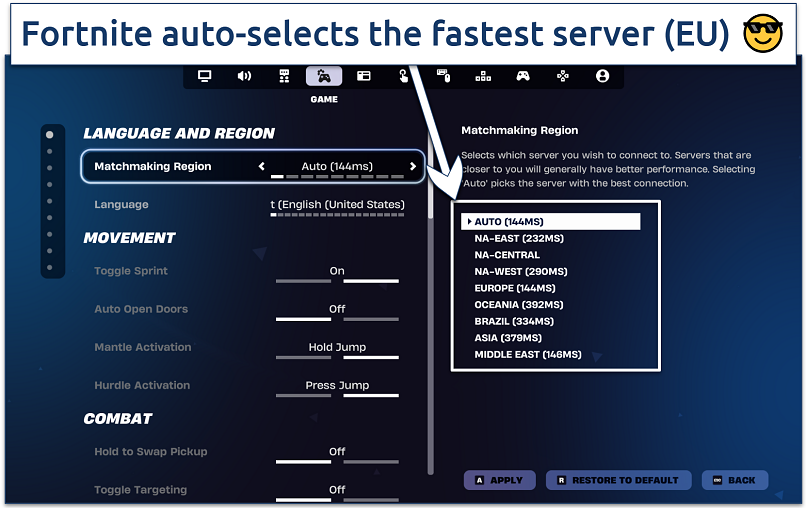 Some regions had almost 3x more ping
To test this quickly:
- Check the game’s region, server, or matchmaking settings.
- Start with the lowest-ping region available.
- Try the next nearby option if the first one still feels unstable.
However, the best option might not always be the geographically closest one. Some regions have faster infrastructure between them, while some ISPs may have suboptimal routing to nearer servers.
2. Use Ethernet Instead of WiFi for Lower Latency
Ethernet is usually the better choice for gaming because it gives you a more stable connection, adds less latency, and avoids most WiFi interference. While WiFi connections are convenient, they’re also more susceptible to slowdowns due to distance, signal congestion, and bandwidth sharing. For example, gaming on my laptop in the TV room instead of my study, where my router is, sometimes drops my speed by half.
Even a cutting-edge gaming router can have slower and less stable WiFi than older Ethernet technology. While the latest WiFi standards have significant theoretical or lab performance, they’re usually much slower in real life. PubNub’s 2025 latency guide estimates that real-world wired connections often sit around 10–30ms, while WiFi can add 10–50ms or more with spikes depending on distance, interference, and routing.2
| Technology | Theoretical Max Speed | Ideal / Top (lab-best) | Real-World Speed Range | Added Latency |
| Ethernet (Cat5e) | ~1Gbps (1,000Mbps) | ~1Gbps | ~800-950Mbps in good setups | ~1-4ms |
| Ethernet (Cat6a/Cat7/Cat8) | 10Gbps or higher | ~10Gbps | Several Gbps in ideal local networks | ~1-4ms |
| WiFi 5 (802.11ac) | ~6.9Gbps | ~2-3Gbps in ideal conditions | ~100-800Mbps | ~5–20ms |
| WiFi 6 (802.11ax) | ~9.6Gbps | ~2.4Gbps per device (2×2 160 MHz) | ~600-1,200Mbps | ~2–10ms |
| WiFi 7 (802.11be / EHT) | ~46Gbps | ~20-30Gbps | Early devices may see multi-Gbps links in optimal setups | ~2–10ms |
A lot of times, your local WiFi will be much slower than your ISP uplink. Using Ethernet will bring you closer to maximizing the potential of your connection. Ethernet cables can maintain reliable performance for runs up to 100 meters, which is the maximum segment length for 1000BASE-T Gigabit Ethernet.3 On the other hand, WiFi extenders can add a lot of lag unless you buy top-end gaming ones.
When using Ethernet, disable the WiFi adapter in your OS to avoid routing confusion or accidental fallback, which can lead to sudden lag spikes while gaming. PS and Xbox consoles also support Ethernet out of the box. If Ethernet wiring isn’t feasible in your home, Powerline adaptors or MoCA coax cables offer many of the same benefits.
3. Optimize WiFi If Ethernet Isn’t an Option
If you don’t have an Ethernet cable or it’s not feasible, there are still many ways to improve your WiFi connection for gaming. Modern WiFi is fast enough for low-latency gaming, as long as you reduce distance, limit competing devices, and choose better router settings.
Try these steps in this order to make WiFi gaming more stable:
- Position your gaming device and router near each other. WiFi speed diminishes rapidly with distance or if there are physical obstacles between them. Also, arrange your router antennas in different planes to cover more angles.
- Reduce the number of active devices while gaming. Even if no one is using a device, it may be using background traffic for updates, reporting, or other activity.
- Use 5GHz instead of 2.4GHz. Most modern routers, PCs, consoles, and smartphones support both protocols. Enable 5GHz in your router’s wireless settings and then make sure to connect to the right band when gaming.
- Pick a less busy WiFi channel. If you have more than one WiFi band set up, it’s best if fewer devices share your gaming rig’s channel. Connect to 5GHz, and then switch other devices to 2.4GHz, for example.
- Be careful with WiFi extenders. Signal boosters or mesh systems can improve WiFi further away from your home router. However, the extender itself can add latency as another point for your traffic to route through.
- Adjust channel settings. If your router allows, set your channel width to 80MHz or lower. Using narrower channels can minimize interference, particularly in congested areas.
- Prioritize your gaming device’s traffic. Also called the QoS (Quality of Service) setting, this allows you to assign a higher priority to your gaming device’s IP. Your router will prioritize its packets, especially when many devices are using the network.
- Disable optional WiFi features. Tools like guest networks, background scanning, or power-saving modes can lead to unexpected lag spikes.
- Use built-in low-latency modes. Mostly available on newer WiFi 6/6E-capable routers, settings like MU-OFDMA, OFDMA, or Real-time aim to reduce latency with multiple connected devices.
- Split SSIDs for gaming and other devices. Create a dedicated WiFi network (SSID) for your gaming device with optimized settings. Keep IoT or other devices on a different SSID to reduce unwanted traffic on your gaming connection.
4. Close Background Apps That Use Bandwidth
Downloads, cloud syncs, and streaming apps can cause lag by taking bandwidth away from your game. I’ve learned the hard way that even a single background app can ruin an otherwise perfect connection. When these apps run while you play, they can lead to packet queuing, delayed responses, packet drops, and gameplay that feels sluggish or unresponsive.
If you’re running a PC, Windows Update, OneDrive, and Steam auto-updates are common culprits. A quick check of your task manager, resource monitor, or router dashboard can reveal which apps are using the most data. Once you pause or limit those processes, the difference in game responsiveness can be instant. Your connection suddenly feels snappier, shots register on time, and the gameplay flows.
Here’s how to limit or disable bandwidth-greedy apps:
- Open Task Manager with Ctrl + Shift + Esc and check the Network column to see which apps use the most bandwidth.
- Disable unnecessary startup apps in Settings > Startup, especially apps that don’t need to launch when your PC starts.
- Open those apps one by one and disable auto-updates, background reporting, and any other unnecessary networking.
- Use Windows Firewall or a tool like GlassWire in extreme cases to block or throttle problematic apps while gaming.
- Turn on Windows Game Mode to help Windows prioritize your game and reduce other apps’ resource use while you play.
5. Reduce Bufferbloat With Smart Queue Management or QoS
Bufferbloat increases gaming latency when your router has too much data to handle, creating a bottleneck during uploads, downloads, streaming, or other heavy home network use. Smart Queue Management (SQM) or Quality of Service (QoS) are features offered by some routers to help manage congestion and give your gaming connection priority. Routers running OpenWRT, Asuswrt-Merlin, DD-WRT, or OPNsense usually support this functionality.
You can follow these steps to prioritize gaming traffic, but the exact menu names will differ depending on your router brand, model, and firmware version:
- Log in to your router’s admin panel. Enter 192.168.1.1 or 192.168.0.1 in your browser and enter your admin credentials.
- Find the QoS or Smart Queue section. Navigate to Advanced Settings, Bandwidth Control, or Traffic Management. It’s usually Adaptive QoS on Asus routers or QoS Settings on TP-Link.
- Enable QoS or SQM. Turn on the feature and select Smart Queue Management (SQM), CAKE, or FQ-CoDel if available.
- Set your bandwidth limits. Enter your upload and download speeds at roughly 80–90% of your ISP’s maximum. This prevents queues from filling up and improves latency under load.
- Prioritize your gaming device. Many routers let you tag a device or game as Highest Priority.
- Save and reboot your router. Then, run a bufferbloat test, such as the Waveform Bufferbloat Test, to see whether there’s an improvement.
6. Use a VPN if ISP Throttling or Bad Routing Is Causing Lag
A VPN can reduce gaming lag when the problem comes from ISP throttling or poor routing between your ISP and the game server. It won’t fix every type of lag, but I’ve often turned to a VPN when nothing else seemed to work, and sometimes, it really does make a difference.
A good VPN can protect your connection from outside interference and change the route your gaming traffic takes. By connecting to a nearby VPN server, your device creates an encrypted tunnel that keeps your data private and prevents your ISP from seeing, and potentially throttling, your gaming activity.
I’ve seen plenty of ISPs slow down game or streaming traffic during peak hours, and a VPN can stop that cold. Choosing a VPN server closer to the game’s region can sometimes deliver a shorter, cleaner path to servers like Riot, Valve, or Activision.
Of course, no solution is perfect. A VPN adds a tiny bit of extra latency due to encryption. Still, in my experience, that’s nothing compared to the crippling lag caused by throttling or bad routing. Most gaming VPNs are easy to install and work on just about any device, so testing one only takes a few minutes.
1. Pick a Gaming VPN With Nearby Servers
Choose a VPN with fast speeds and servers near your gaming lobbies or the game’s region. Visit the website, sign up, and then download the app for your device. You can download the mobile VPN apps from the Google Play Store or Apple App Store, too. For a PlayStation or Xbox, follow the VPN provider’s router setup instructions since consoles usually don’t support full VPN apps directly.
2. Fine-Tune the VPN Protocol and Port Forwarding Settings
Use a high-speed VPN protocol first since protocol choice can affect latency. WireGuard is generally the fastest established option. However, some VPNs have optimized proprietary protocols, like ExpressVPN’s Lightway. Port forwarding can also help with NAT-related delays by directing game-related traffic from your router to your gaming device, but not many VPNs offer this.
3. Connect to the Right VPN Server
The best VPN server depends on what you’re trying to fix. If you suspect throttling is the cause, connect to the nearest server for the fastest speeds. If routing seems to be the issue, choose a location near the game/lobby server.
For example, WoW and Counter-Strike 2’s EU servers are typically in Paris and Frankfurt. The more specific you can get, the better. If available, connect to servers dedicated to gaming performance.
4. Test Gameplay and Keep the VPN On if It Helps
If the VPN gives you better server routing or stops ISP throttling, your latency may drop right away. Once it works, keep the VPN connected for the entire session to avoid latency changes or game disconnects.
Which VPNs Are Best for Low-Latency Gaming?
Premium gaming VPNs with plenty of high-speed servers near your location usually offer the best performance. The VPNs below also offer split tunneling, so you can keep other apps and websites on your regular connection while gaming through the VPN.
For gaming, these details matter most:
- ExpressVPN: A lightweight protocol and automatic traffic disguise make it useful on networks that slow or block VPN connections.
- NordVPN: Meshnet can help with private device-to-device gaming setups, especially when you want LAN-style access outside the same home network.
- CyberGhost: Gaming-labeled servers make server choice simpler if you don’t want to test several nearby locations manually.
Note: Base ping refers to the milliseconds (ms) our speed tester got without a VPN connected.
7. Update the Game, OS, Drivers, and Router Firmware
Outdated drivers or software are among the most common reasons for system lag, including intermittent lag, low frames per second (FPS), stutters, and texture popping. Your video game, operating system, and drivers, such as sound, graphics, input/output, and networking, all need to be in sync for games to run smoothly.
Check these areas:
- Game patches. Video games are usually patched through your game launcher, like Steam, EA Origin, or Battle.net. It should automatically check for and install them whenever you have an internet connection. Most clients no longer allow manual installs. If a game isn’t installing an available patch, clear the client’s download cache to resolve the issue.
- GPU and OS updates. Windows PCs with gaming GPUs usually need driver installs through apps like GeForce Experience or AMD Adrenalin. Check this software every few weeks at least, on top of your Windows Updates. Mac GPU drivers are included with regular OS updates. GPU driver releases are also essential to get a game’s latest performance enhancements.
- Console, mobile, and extra PC drivers. On smartphones and gaming consoles, you usually only need the video game and OS to stay current. If issues persist on your PC, manually check your network, motherboard, and firmware drivers using Device Manager.
- Router firmware. To refresh your router firmware, log into your router’s admin panel, usually at 192.168.1.1 or as printed on the device, find the Firmware Update or Advanced Settings section, and check manually. Many modern routers, like TP-Link, Asus, and Netgear, also offer automatic firmware installation in their web or app dashboards.
8. Tune In-Game Network and Performance Settings
If one game is lagging more than others, the issue may come from its network or performance settings. Either can cause stuttering, jitter, rubber-banding, texture popping, or a low framerate. Misconfigured graphics settings are more likely to cause system lag than network lag, so start there:
- Use Auto-Detect or Balanced graphics presets as a baseline.
- Lower settings like Shadows, Anti-Aliasing, and Post-Processing, which often deliver the biggest FPS gains.
- Disable V-Sync if input lag feels high.
- Try enabling Adaptive Sync or G-Sync for smoother frame delivery.
Network-related fixes are usually unique to the game you’re playing. For example, in online games like Valorant and Warzone, enable Low Latency Mode or set Network Buffering to Low. These settings prioritize real-time data delivery over visual smoothness.
9. Restart Your Router and Gaming Device
A simple reboot can often fix high ping or random lag spikes by clearing temporary network data. It works because it clears memory caches, resets network channels, and may even force a new ISP-assigned route.
Here are some ways to refresh your network and return gaming latency to normal:
- Turn off your router for at least 10–15 seconds before turning it back on.
- If you game on a console, fully Shut Down or Power Off the device, since Standby or Rest Mode won’t have the same effect.
- On Windows, run ipconfig /flushdns in Command Prompt to clear outdated DNS entries before restarting your system. You can also run netsh winsock reset to fix corrupted network sockets.
- On Mac, enter sudo dscacheutil -flushcache; sudo killall -HUP mDNSResponder in Terminal.
- Reboot your PC or smartphone to clear software glitches and reset network adapters.
10. Use a Lag Reduction App for Poor Routing
Lag reduction apps can help when your ISP takes an inefficient path to the game server. These tools redirect your game traffic through optimized paths for supported titles. Specialized tools like ExitLag focus on reducing latency instead of encryption and IP masking, like standard VPNs. Other popular options are NoPing and GearUp, with some even offering apps for mobile gaming.
These apps typically work on subscription models with free trials. Some, like ExitLag, automatically detect games on your system and select a better path. They can be very effective when routing is the issue. While they usually have a lower latency overhead than standard VPNs, they generally can’t prevent ISP or network throttling because they lack robust encryption.
11. Enable UPnP or Set Up Port Forwarding to Improve NAT Type
UPnP or port forwarding can help when a Strict or Type 3 NAT is causing lobby disconnects, connection failures, voice chat issues, or lag in peer-to-peer games. Some online games use peer-to-peer connections with specific inbound ports to work. “Strict” NAT on Xbox or “Type 3” NAT on PlayStation can block this traffic. Some PC games, like Call of Duty or GTA Online, show NAT status in the matchmaking lobby.
Enabling UPnP is the easiest way to resolve this for most gamers:
- Log in to your router’s admin panel.
- Go to Advanced > NAT Forwarding > UPnP. The location varies by router model.
- Enable UPnP and save changes.
- Reboot the router and relaunch your game. Your NAT type may change to Moderate or Open in-game.
If UPnP isn’t available or you want more control, you can try manual port forwarding:
- Look up the ports for your game or client. They’re typically available online, but you can also check your firewall logs or scan your own network with tools like Nmap. These are some common ones:
- Xbox: TCP/UDP 53, 80, 88, 500, 3074, 3544, 4500
- PlayStation: TCP 80, 443, 3478–3480 or UDP 3478–3479
- Steam: TCP 27015–27030 or UDP 27000–27100
- Access your router admin panel and open Port Forwarding or Virtual Servers from the menu.
- Create new rules for those ports and assign them to your device’s local IP. You can find it under Network Status or with ipconfig.
- Save the changes and restart the router.
- On a console, re-run the NAT test. On PC, you can test open ports with canyouseeme.org.
12. Lower CPU/GPU Spikes That Feel Like Network Lag
Sudden frame drops, stuttering, or hitching can look like online lag, but CPU or GPU performance is often the real cause. These micro-freezes happen when your system can’t process frames fast enough to match your display refresh rate or the game engine’s demands.
Try these CPU/GPU-specific fixes:
- Cap your FPS. Use in-game settings or your GPU control panel to set a stable frame limit. Anything below 30fps will start to feel laggy. For competitive play, however, you need at least 120fps. The sweet spot for most players is between 60 and 90fps. A 240Hz monitor can refresh up to 240 times per second, but your game still needs to render close to 240fps to fully use it.
- Enable low-latency GPU features if available. If your game supports NVIDIA Reflex, it’s worth enabling. In NVIDIA’s 2024 XDefiant testing, Reflex reduced system latency by up to 58% on GeForce RTX 40 Series GPUs, though results depend on the game, hardware, and settings.4
- Improve cooling. Overheating reduces performance, so game on your console or PC in a cool, well-ventilated space. Replace your CPU paste every 2 to 5 years. For a laptop, use a cooling pad as well.
- Use High Performance mode on Windows. Enable High Performance mode when gaming, especially on a laptop.
13. Escalate to Your ISP or Switch Providers
If every other fix or test fails, the issue may be outside your home network. Your ISP may use poor routing between you and your favorite online game servers, have limited peering agreements, or apply heavy-handed bandwidth throttling to gaming traffic.
Before reaching out to support, gather evidence such as:
- Traceroute screenshots showing where latency spikes
- Ping spikes or packet loss logs from affected games
- Speed test results with timestamps
- A short list of fixes you’ve already tried, such as Ethernet, router reboot, QoS/SQM, VPN testing, or changing game servers
Contact support and provide the data. In some cases, it may be a known issue that can be solved with a technical workaround or by changing your plan.
If you switch ISPs, choose one that matches your gaming habits. For instance, a player in Brazil who often plays games on North American servers should prioritize providers with strong routes to the U.S. East Coast. Similarly, ISPs with strong uplinks to the EU are typically best in South Africa. Check peering reports, latency benchmarks, and ask providers about their backbone links to your gaming regions.
In rare cases, an ISP may offer a plan with dedicated gaming profiles and optimized routing, particularly for business users.
How Do You Test and Identify What’s Causing Gaming Lag?
Finding the root cause of lag helps prevent a lot of time-wasting and headaches. Run the following troubleshooting steps in this order to identify what type of lag you’re dealing with, then apply the fix that matches the result.
- Run an online speed test. Use a free site like speedtest.net or Fast.com to check your connection speed, particularly your ping. High or fluctuating ping typically indicates a network issue that will affect all games on your device. If the remaining tests rule out a router or system issue, it may be a problem with your ISP.
- Check the router device load and logs. Log in to your router admin panel at 192.168.1.1 and check connected devices and logs. Based on what you see, disconnect bandwidth-heavy devices or enable QoS to prioritize gaming traffic.
- Perform a ping command test. Launch Command Prompt and run ping 192.168.1.1, swapping in your default router IP if needed. If the result is much worse than your online speed test, the issue may be with your device or WiFi connection.
- Run a traceroute scan. This shows where along the route latency starts, whether inside your ISP’s network or near the game’s servers. Many games make their server hostnames or IPs publicly available, like valorant.secure.dyn.riotcdn.net. For example, open the command line and run tracert valorant.secure.dyn.riotcdn.net to analyze the route. You can also use tools like PingPlotter or Cloudflare Radar.
- Check whether one game or all games lag. If you’re pretty sure the issue is system-specific, run a few games and compare how they perform. If it’s just one, you may need to patch it or adjust in-game settings. If it’s multiple, check system performance or drivers.
- Use in-game debugging or monitoring tools. Some games, like Fortnite and Apex Legends, provide built-in tools like Network Debug Stats to monitor ping and packet loss. They may also help you distinguish between network and system lag.
- Compare online and offline modes. Some games also offer an offline mode, like Call of Duty: Modern Warfare III, Minecraft, and Warzone. If the problem appears online and disappears offline, the issue is likely network-related.
- Monitor system usage in Task Manager. Press Ctrl + Shift + Esc and check the CPU, GPU, and Network tabs. Identify apps that hog resources and uninstall, sleep, or manage them.
- Check for overheating or thermal throttling. Open Task Manager and go to the Performance tab. If your CPU/GPU temperature exceeds ~85 °C, overheating may be the cause. You can also use tools like HWMonitor or MSI Afterburner.
- Test different game servers. Switch to nearby servers in-game, or choose the servers/lobbies with the lowest latency if the game shows it. Check ping during gameplay itself to make sure it’s actually faster.
- Test at different times of day. If lag gets worse or spikes at specific times, your ISP may suffer from peak-hour congestion. ISPs may also throttle high-bandwidth traffic to manage congestion, in which case a VPN might help.
How We Tested Ways To Fix Gaming Lag
There are many ways to improve gaming latency, so we ordered the methods by ease of use, effectiveness, and how widely they apply to different setups. Some causes of lag demand specific fixes, so you may need to use different methods depending on your issue and gaming setup. For example, you can skip WiFi fixes entirely if you already use Ethernet.
We focused on fixes that address real gaming problems:
- High ping and routing issues, where changing servers, testing a VPN, or contacting your ISP may help.
- Home network problems, such as WiFi interference, bufferbloat, background downloads, or router misconfiguration.
- Game or device-specific lag, including strict NAT, in-game network settings, outdated drivers, overheating, or CPU/GPU spikes.
- Risk level, with simple fixes placed before advanced router changes, because misconfiguring those can make the connection worse.
If you’re tired of rage-quitting or losing matches due to lag, the best approach is to test the most likely causes first, then apply the fix that fits your results. Some solutions are more complex than others, so start with the easiest ones before changing router or ISP settings.
FAQs
Final Takeaway
Smoother gaming starts with finding the real bottleneck instead of applying every fix at once. Once you know whether the lag comes from the connection path, home network, device performance, or the game itself, it’s easier to choose the right solution without wasting time on changes that won’t help.
Start with the simplest checks, then move to router, VPN, or ISP-level fixes only when the evidence points there. This keeps the process practical, lowers the risk of misconfiguration, and gives you the best chance of reducing lag without making your setup more complicated.
References
- https://www.pubnub.com/blog/low-latency-gaming/
- https://www.pubnub.com/blog/low-latency-gaming/
- https://www.techtarget.com/searchnetworking/definition/1000BASE-T
- https://www.nvidia.com/en-eu/geforce/news/xdefiant-reflex-low-latency/
- https://www.ericsson.com/en/reports-and-papers/mobility-report/articles/mobile-cloud-gaming
Your online activity may be visible to the sites you visit
Your IP Address:
216.73.216.179
Your Location:
US, Ohio, Columbus
Your Internet Provider:
Some sites might use these details for advertising, analytics, or tracking your online preferences.
To protect your data from the websites you visit, one of the most effective steps is to hide your IP address, which can reveal your location, identity, and browsing habits. Using a virtual private network (VPN) masks your real IP by routing your internet traffic through a secure server, making it appear as though you're browsing from a different location. A VPN also encrypts your connection, keeping your data safe from surveillance and unauthorized access.
About the Author
Hendrik is a former writer at vpnMentor, specializing in VPN comparisons and user guides. With 5+ years of experience as a tech and cybersecurity writer, plus a background in corporate IT, he brought a variety of perspectives to test VPN services and analyze how they address the needs of different users.


Please, comment on how to improve this article. Your feedback matters!