 EN
EN
 Dansk
Dansk  Deutsch
  Español
  Français
  Hrvatski
  Indonesia
  Italiano
  Magyar
  Nederlands
  Norsk
Norsk  Polski
  Português
  Română
  Suomi
Suomi  Svenska
  Tiếng Việt
  Türkçe
  Čeština
  Ελληνικά
  Русский
  Українська
  български
  ไทย
ไทย  日本語
日本語  简体中文
简体中文  한국어
한국어  עברית
עברית  العربية
5 Best Free VPNs for Windows: Safe & Fast (Tested in 2025)

- Quick Overview: Best Free Windows VPNs
- Do You Need a VPN on Windows?
- Does Windows Have a Built-in VPN?
- Best Free VPNs for Windows — Tested & Verified in 2025
- How To Set Up a Free VPN for Windows
- Is It Better To Use a Free VPN or a Paid VPN for Windows?
- Free VPNs You Should Stay Away From
- How We Tested and Ranked the Best Free Windows VPNs
- Can You Use a Free VPN on Multiple Windows Devices?
- FAQs
- Our Verdict
Most free VPNs for PC do more harm than good to your online security. Some secretly log and sell your data or simply don’t work as they claim. Your PC also faces daily risks from hackers and malware, not to mention Microsoft's own telemetry collection. A reliable free VPN can protect sensitive data and provide secure access to the internet from anywhere.
Free Windows VPNs typically offer slow speeds, weak security, and limited data. Many lack support for streaming services, block torrenting completely, or don’t work with native Windows features. My team and I tested 70+ free VPNs on Windows 10 and 11 and listed options that actually work without compromising your security. While these VPNs are safe and perform well, they still have limited server networks and can slow you down.
So, here are the best free VPNs for Windows in 2025 that we found to be safe to use, lightweight, and realistic for everyday needs. I’ll show you what works, what doesn’t, and what to expect before you download anything.
Quick Overview: Best Free Windows VPNs
The table below breaks down the key features of the best free VPNs for Windows. I’ve included real-world speed performance, free server locations, and monthly data limits. These are the things I personally look at when deciding if a free VPN is actually usable for streaming, torrenting, or just everyday browsing.
I’ve also pointed out whether you need to create an account to use each VPN on Windows, as that can make a big difference if you care about privacy and want a quick, no-hassle setup.
Note. Baseline refers to our tester's speed without the VPN connected.

Do You Need a VPN on Windows?
Using a VPN on Windows isn’t about “being paranoid”; it’s about basic digital hygiene. If you use public WiFi, access local sites, log in to accounts, or just don’t like the idea of being tracked everywhere, a VPN makes a real difference. I’ve used VPNs on Windows mainly for safer browsing and avoiding throttling on crowded networks.
A VPN works by routing your internet traffic through a secure server in another location. This hides your real IP address and makes it look like you’re browsing from somewhere else. At the same time, your data gets encrypted, so hackers, snoops, and trackers can’t easily see what you’re doing.
We’ve tested dozens of free VPNs for Windows, and many posed serious risks instead of protecting you. Some were packed with hidden malware. Others quietly tracked our activity. A few had critical security flaws that leaked real IP addresses during our tests. We’ve also seen free VPNs clash with Windows Security and firewall settings, which can actually weaken your system instead of protecting it.
Here are some common dangers we found in unsafe free VPNs for Windows:
- Hidden malware that installs spyware or keyloggers in the background
- Privacy abuses where your browsing data is logged and sold
- Weak or missing encryption that exposes your real IP address
- Blocked servers that can get your accounts flagged or block banking transactions
Does Windows Have a Built-in VPN?
Windows does include a built-in VPN client, but it’s not a full VPN service. You still have to buy a VPN separately and manually set everything up yourself. From what I’ve seen, this setup is slow, confusing, and missing important protection, like a kill switch or leak protection.
You’re usually better off with a proper VPN app that gives you one-click protection and adds real security on top of what Windows already offers.
Best Free VPNs for Windows — Tested & Verified in 2025
1. PrivadoVPN — Fast Free VPN for Streaming and Gaming on Windows
 Try Risk-Free for 30 Days
Tested December 2025
| Best Feature | Speedy and stable free Windows VPN, good for casual streaming and low-latency gaming |
|---|---|
| Server Network | Free servers in 13 locations with manual server selection on Windows |
| Speed | Strong performance for a free VPN, suitable for HD streaming and smooth browsing |
| Works With | Netflix US, Disney+, Funimation, and more |
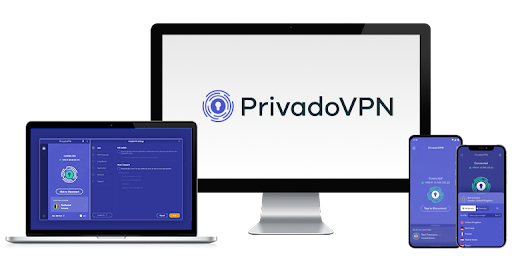
PrivadoVPN is a free VPN for Windows that performed more reliably than we expected during everyday use. We tested it on Windows 11 by streaming HD content and playing a few Valorant matches to see how stable the connection would be. It wasn’t flawless, but it stayed stable enough for casual gaming and didn’t fall apart the way many free VPNs do.
 I could also play ranked without running into slowdowns
In terms of raw speed, PrivadoVPN was one of the fastest free VPNs we tested on Windows. We recorded average speeds of 81.27 Mbps, which put it ahead of most free competitors. It provides free server locations in South and North America, Europe, the UK, and the US, which is more than some other free VPNs. Plus, you can manually select a server, which makes it easier to experiment and find a more stable connection.
From a privacy standpoint, PrivadoVPN uses standard AES 256-bit encryption to protect your connection. It also follows a no-logs policy and includes DNS leak protection to reduce the risk of accidental data exposure.
The main limitation is the 10 GB monthly data cap, which means it isn’t ideal for streaming entire seasons or large downloads. That said, the Windows app is simple and lightweight, and it runs smoothly even on slower test systems.
Useful Features
- Kill switch. The Windows app includes a kill switch you can configure to block all traffic or only specific apps if the VPN disconnects. That helps prevent accidental data leaks if your connection drops or you switch networks.
- Auto-connect and auto-start. You can set PrivadoVPN to start with Windows and automatically connect to a preferred type of server (best location, last used, or random). This is useful if you don’t want to remember to turn the VPN on every time.
- Manual server and “best server” options. The app lets you either quick-connect to the recommended server or manually pick from the list of available free locations, so you can experiment a bit to find what feels most stable on your line.
- Protocol control. In the Windows settings, you can switch between Automatic, IKEv2, WireGuard, and OpenVPN. This is handy if you’re troubleshooting stability or trying to squeeze out a bit more speed on a specific network.
- Free servers in 13 locations
- Full suite of security features
- Simple one-click activation
- Restricted to 10GB per month
- No browser extensions
- Only one device connection
2. Proton VPN — Free Windows VPN With Unlimited Data for a Smooth Online Experience

| Best Feature | 100% free Windows VPN with no data caps, great for heavy internet users |
|---|---|
| Server Network | Free servers in 5 locations for safe browsing and streaming |
| Speed | Fast enough to stream in HD without annoying interruptions |
| Works With | Netflix US, Disney+, Funimation, and more |
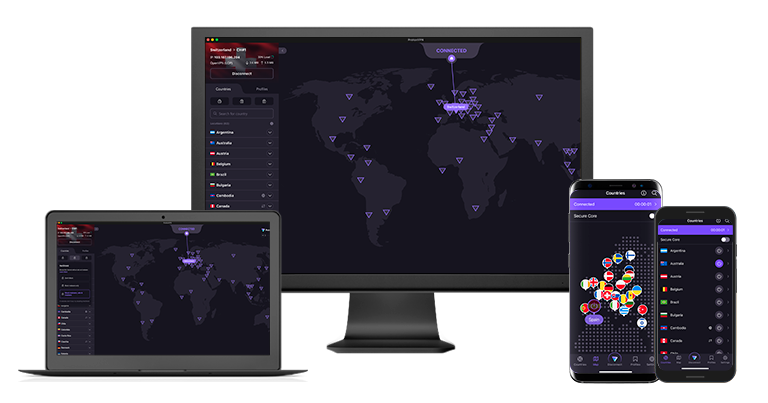
Proton VPN is a 100% free Windows VPN that doesn't restrict your data usage. Unlike many free VPNs that cut you off after hitting a monthly cap, you can browse, stream, and download without restrictions. During our tests on Windows 11, we streamed Lost on Netflix Netherlands in HD without any connection drops or speed throttling. We used over 50GB of data in a week without hitting any caps or slowdowns.
 The speeds were stable too; we were never throttled
Although not as fast as PrivadoVPN, Proton VPN still offers decent speeds compared to the other free options we tested on Windows. It offers 5 locations, including the US, Japan, and the Netherlands, more than most free VPNs, so there’s one in most regions. While you can’t manually select servers, you can change the location to a different one randomly by clicking the Change server button.
Like all of Proton VPN’s apps, its Windows app is open-source and independently audited, which gives you complete transparency about what's running on your PC. Proton VPN's Swiss jurisdiction and verified no-logs policy ensure your online activities stay private. The app also includes IPv6 and DNS leak protection to prevent unwanted data leaks.
The biggest drawback is that P2P traffic isn't allowed on free servers, so you can't use it for torrenting on your Windows PC. However, it does come with all the essentials to protect your PC online, like a kill switch to prevent any unsecured data transfer if the VPN connection drops. It also uses the same AES 256-bit military-grade encryption as premium VPNs.
Useful Features
- Split tunneling. With this, you can route specific Windows apps through the VPN while others use your regular connection. This is particularly useful when you want to protect sensitive applications like banking apps while maintaining fast speeds for local services.
- Decent option for streaming. We could stream Netflix US and Disney+ in HD, though it didn't work with Max, Hulu, or Amazon Prime. However, since you can't manually select the server, there's no guarantee you'll be able to get it to work with region-specific services.
- Protocol support. The free PC app lets you choose between all protocols, including Stealth, WireGuard, and OpenVPN. The Stealth protocol obfuscates your traffic to avoid DPI and other censorship measures.
- Windows system tray controls. This gives quick access to common VPN functions without opening the full application.
- Unlimited monthly data
- Reputable privacy practices and features
- Fast speeds near and far
- Only nearby server connection
- No P2P support
3. hide.me — Customizable Security Features to Optimize Your Connection on Windows

| Best Feature | Strong security that can be customized as per your Windows needs |
|---|---|
| Server Network | Free servers in 8 locations to switch to in case of crowded connections |
| Speed | Offers decent speeds with unlimited data to secure your Windows machine for hours on end |
| Works With | Netflix, Disney+, Funimation, and more |
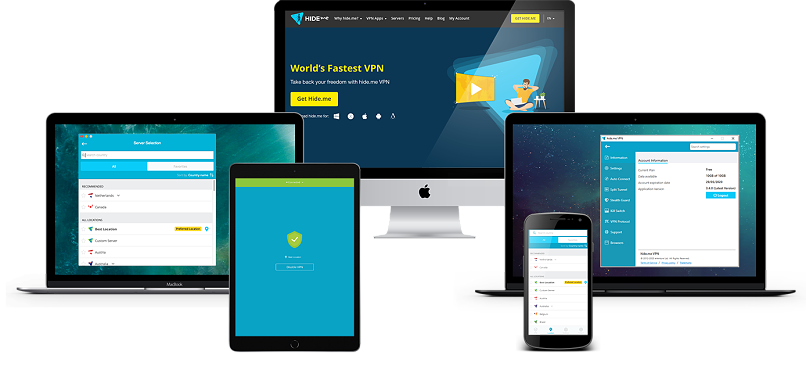
hide.me puts you in complete control of your Windows VPN with advanced settings not common in free apps. Its app lets you customize everything from VPN protocols (WireGuard, OpenVPN, SoftEther) to network settings, including the choice between IPv4 and IPv6 connections. During our tests, IPv6 delivered lower latency than IPv4. This helped us balance speed and security — I used WireGuard for gaming and OpenVPN for maximum protection.
 You can also specify the MTU packet size precisely
Free users get access to servers in 8 locations, including the Netherlands, the US, and Germany. Unlike most free VPNs, hide.me lets you manually select a server — but this option may be temporarily disabled during peak times, defaulting to automatic selection. Officially, the free version doesn’t support streaming, but we did get it to work with some Netflix libraries.
The VPN supports the SoftEther protocol, which is especially useful for overcoming VPN blocks on restrictive networks like schools and offices. It’s one of the few free VPNs that may work in China, for example, but like any VPN, 100% uptime isn't guaranteed due to the changing internet landscape and limited server options.
The main drawback is that the free servers can get a bit crowded at times. And it’s much slower than other VPNs on this list. However, connecting to a different server often resolves the issue.
Useful Features
- Stealth Guard. This feature blocks selected apps from accessing the internet unless the VPN is connected, providing an extra layer of privacy protection. For example, you can set this up with your BitTorrent client or crypto wallets so that you never use them unprotected.
- Lock App. This feature is available on Windows, and it allows you to create a PIN that will keep unwanted users from accessing your hide.me app.
- Tons of customizable security features
- Unlimited monthly data
- Free servers in 8 locations
- Capped speeds
- No server selection after 10GB of data
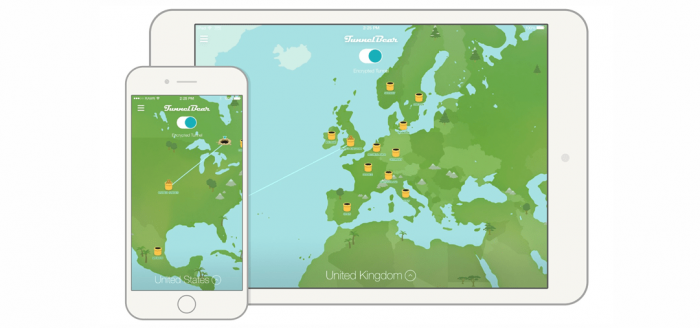
4. TunnelBear — Easy Setup on Windows and Many Free Server Locations

| Best Feature | Simple, beginner-friendly Windows VPN with access to many free locations |
|---|---|
| Server Network | 47 free locations available directly from the Windows app |
| Speed | Fast speeds, but limited by a terrible 2GB data cap per month |
| Works With | Peacock, Crunchyroll, and Max |
TunnelBear is one of the easiest free VPNs to get running on Windows. When we tested it on a Windows 11 laptop, the setup took less than a minute and didn’t require any technical tweaks. It’s very much a “download, click, and connect” type of VPN, which makes it a good fit if you just want quick protection without messing around with settings.
 You don't need to register to download TunnelBear
TunnelBear’s speeds were surprisingly quick in our tests, especially for basic browsing and short streaming sessions, though the data cap limits how much you can really do with it.
The main limitation is the 2 GB monthly data cap, which runs out quickly if you try to stream or download frequently. It’s best for short-term use, quick protection on public WiFi, or occasional streaming rather than full-time use.
Useful Features
- Trusted security model. Independently audited apps and a clear privacy policy that’s easy to understand.
- Large free location access. Unlike most free VPNs, you can connect to many country locations even on the free plan.
- Free servers in 47 countries
- Works with some streaming platforms
- Fun, quirky app design
- Only 2GB of monthly data
- Doesn't offer apps for some devices
- Not router compatible
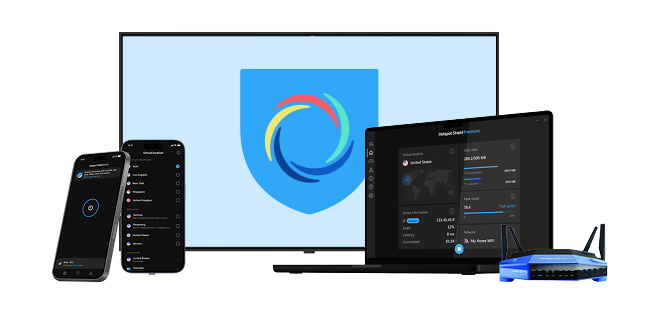
5. Hotspot Shield — No-Registration Free VPN for Fast and Private Online Access

| Best Feature | Download the app and connect to a server in under 3 minutes |
|---|---|
| Server Network | 5 free locations, with the option to manually select a server |
| Speed | Fast speeds, but limited by a 500MB data cap per day |
| Works With | Peacock, Crunchyroll, and Max |
With no sign-up required, you can get connected faster without having to create yet another online account. This is even more ideal than most free trials for trying a VPN out for the first time. Plus, the Windows app is pretty intuitive, with a one-click-connect design and modern interface. During our test, we could get the Hotspot Shield app up and running in just a few minutes.
 The IKEv2 protocol is only available with the paid plan
Hotspot Shield openly admits to throttling the speeds of its free users, often being twice as slow as paid servers in our tests. Still, thanks to its optimized Hydra protocol, we could browse and download P2P files relatively quickly. With the free version, you can choose from Los Angeles, Singapore, New York, and the UK.
The major concern is Hotspot Shield's logging policy — it collects your real IP address and connection data. For Windows users already dealing with Microsoft's telemetry, adding another layer of data collection defeats the purpose of using a VPN for privacy.
Useful Features
- Decent Windows security. The kill switch and leak protection work seamlessly with Windows' networking, ensuring your connection stays secure even when your PC goes to sleep or switches networks.
- Keyboard shortcuts. This lets you quickly execute common VPN actions without having to click or navigate around the app. For example, Ctrl+Shift+C will connect or disconnect the VPN.
- Speed-optimized Hydra protocol
- Unlimited monthly data
- Supports torrenting traffic
- Ad-supported
- Logs anonymized data
- Limited streaming abilities
How To Set Up a Free VPN for Windows
Installing a free VPN on Windows is super easy and quick. I used PrivadoVPN for my guide, as I found its dedicated app to be the best for Windows. Simply follow the 5 steps below, and you’ll be able to set up your VPN in minutes:
1. Sign Up for a Free VPN
Go to the PrivadoVPN download page and create a free account using your email address. One thing I noticed during testing is that the login flow can feel a bit confusing at first. I actually had to click Forgot password and set a password that way before I could log in properly. It only takes a minute, but don’t worry if the normal signup screen feels slightly awkward.
 I needed to use the forget password function to actually set a new password for my account
2. Download the VPN App
After creating your account, download the Windows version of the app directly from PrivadoVPN’s official website.
 I could download the setup file in under 30 seconds
3. Complete the Installation
On Windows, there are three main ways to get your VPN working:
- Install the free VPN app using the setup file. This is the easiest and most beginner-friendly method. You just download the official app, log in, and click Connect.
- Manually add a VPN connection via Windows settings. Here, you use Windows’ built-in VPN options but still rely on server details from your VPN provider. It’s more manual and usually only needed if the provider supports protocols like IKEv2/L2TP and gives you server addresses.
- Use the built-in Windows VPN client. This is a full step-by-step configuration using Windows Network & Internet settings and selecting the VPN option. It’s useful if you’re connecting to a workplace VPN or a provider that doesn’t offer a Windows app.
For most people, option 1 with the official PrivadoVPN setup file is the best balance of security, speed, and simplicity. The other two options are there if you like more control or need a custom setup.
 The entire installation process was automatic
4. Log In With Your Account and Connect to a Server
Now, you need to log in to your account and connect to a server. I recommend connecting to a server in your home country or nearby, as that usually gets you the fastest speeds.
 Make sure to add the correct info to log in without issues
5. Enjoy Safe Browsing on Windows
Once the VPN is installed on your Windows PC, you can access any website on the internet without worries. Safely access your favorite streaming sites or browse web pages in privacy.
 You can save servers to your 'Favorites' for faster access anytime
Is It Better To Use a Free VPN or a Paid VPN for Windows?
If you're only using a VPN for basic web browsing, checking emails, or securing public WiFi, a free VPN may work. But once you start streaming, gaming, torrenting, or working remotely, the limitations — slow speeds, data limits, and unreliable connections — will quickly become painfully frustrating. That could cause you to stop using the free VPN altogether, leaving you vulnerable to online threats.
Free VPNs offer a good starting point, but paid VPNs for Windows deliver the performance, security, and reliability needed for intensive use. If you value consistent protection, faster speeds, securing multiple devices, and full access to features designed to integrate seamlessly with the Windows OS, they are the better option.
Here are the main free PC VPN limitations you need to be aware of and how they compare to premium VPNs:
| Feature | Free VPNs | Paid VPNs |
| Monthly Data | 500MB–10GB or throttled unlimited | ✅ Unlimited |
| Server Locations | 1–8 countries | 🌍 50+ countries with thousands of servers |
| Connection Speeds | ❌ Often throttled or congested | ✅ Many servers and more infrastructure mean overcrowding is rare |
| Streaming Access | ❌ Rarely works with Netflix, Hulu, etc. | ✅ Reliable and safe access to major platforms |
| P2P/Torrenting | ❌ Often restricted or blocked | ✅ Allowed on dedicated or all servers |
| Device Connections | 1 device per account | 5–unlimited simultaneous connections |
| Security Features | Basic encryption, kill switch, split tunneling, WiFi protection; varies by vendor | Kill switch, leak protection, split tunneling built in |
| Ad Blocking | ❌ Rarely included | ✅ Often bundled with tracker/malware protection |
| Customer Support | ❌ Limited or self-help only | ✅ 24/7 live chat and email support |
| Windows Optimization | Basic app, limited integration | Optimized app with OS-level compatibility |
Free VPNs You Should Stay Away From
- Hola VPN. It uses your Windows PC as part of a peer-to-peer network, letting strangers route traffic through your device.
- Betternet. Multiple security audits have found malware and tracking code in its Windows app.
- TouchVPN. Known for weak encryption and data leaks on Windows systems.
- SuperVPN. Contains tracking libraries and has suffered multiple security breaches.
How We Tested and Ranked the Best Free Windows VPNs
Our testing approach for free Windows VPNs on versions 11, 10, 8.1, and 7 was to assess security, speed, and ease of use. We test various servers to determine how each VPN affects your connection while running common Windows programs. The data tells us which free VPNs can handle resource-heavy tasks like HD streaming without slowing down your system and which ones will interfere with your everyday Windows activities.
When choosing a free VPN for PC, make sure it’s compatible with your version of Windows (especially older systems). Look for services that offer strong encryption (like AES-256), built-in DNS and IP leak protection, and a clear no-logs policy. Some may also offer some of their more advanced premium features for free. For a complete breakdown of our testing process, refer to our VPN testing methodology page.
Can You Use a Free VPN on Multiple Windows Devices?
Yes, you can use a free VPN on multiple Windows devices, but there are usually limitations that you have to deal with. Most free VPNs limit how many devices you can connect at the same time, so you might not be able to protect your laptop and desktop together.
I’ve also noticed that many free plans come with tight data limits, slower speeds, and fewer server options. You can usually install the VPN on more than one device, but actually using them together is where the restrictions show up. So, here’s what you should look at before getting a free VPN that you can use across multiple devices:
- How many devices you can connect at the same time
- Whether there are monthly data limits
- If all devices get the same server access
- Whether you need to log out from one device to use another
- Speed drops when more than one device is connected
- Whether Windows apps are fully supported or limited
Of the VPNs listed above, PrivadoVPN offers the most device connections on its free plan — you can use it on as many devices as you want. To cover every WiFi-connected device in your home, Proton VPN’s free plan supports router setup, so the router counts as your single connection while all devices on the network stay protected.
FAQs
Our Verdict
After testing and comparing all the options, it’s clear that not all free VPNs are equal on Windows. Some are simply too slow, too limited, or too risky to use long-term. The good news is that there are a few safe, realistic free VPN options that actually work well for everyday browsing, light streaming, and basic privacy without breaking your system or invading your privacy.
If you want the most reliable free option overall, PrivadoVPN stood out as the most balanced choice for Windows in our tests. It delivered the best mix of speed, stability, and usability compared to other free VPNs on this list.


About the Author
Husain Parvez is a Cybersecurity Researcher and News Writer at vpnMentor, focusing on VPN reviews, detailed how-to guides, and hands-on tutorials. Husain is also a part of the vpnMentor Cybersecurity News bulletin and loves covering the latest events in cyberspace and data privacy.


Please, comment on how to improve this article. Your feedback matters!